


Two clients use the same office supplier. Both bills arrive in the firm’s shared mailbox, and one has a shortened company name in the billing address. The first decision is which client owns the document. The second is how to code it in that client’s books. A useful invoice workflow needs a way to handle both decisions and show the team when someone has to intervene.

How Tailride collects invoices across a practice
Tailride collects incoming supplier invoices and receipts from connected client mailboxes, supported portals and files the team uploads. This gives the practice a way to bring documents in throughout the month, including bills that a client would otherwise need to download. Invoice collection · Tailride for accounting firms
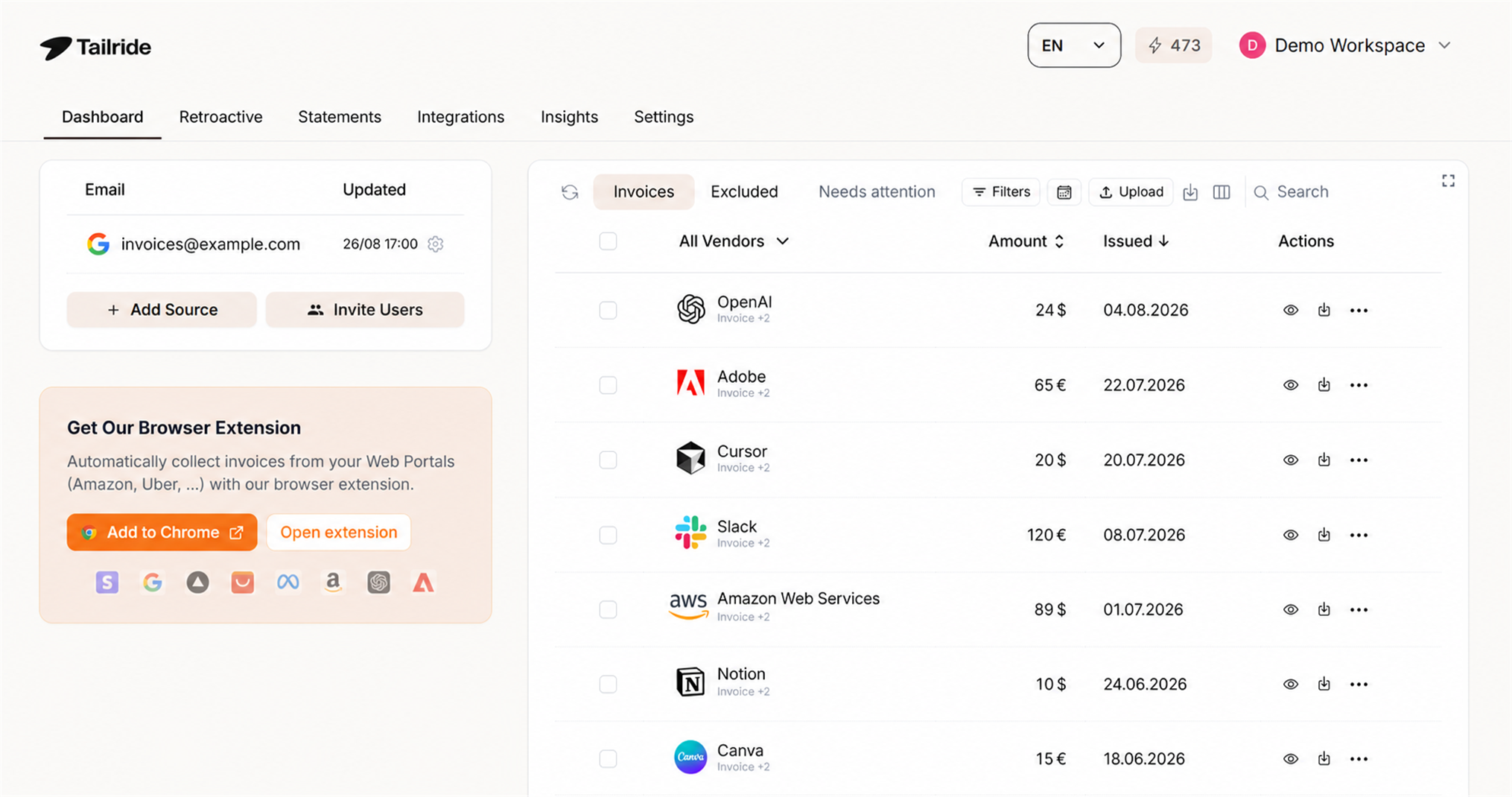
The screenshot shows the invoice list inside a business workspace. The firm dashboard is where the practice switches between client accounts and manages the shared mailbox. Clients have separate workspaces, and firm-billed clients draw from the firm’s shared credit pool. Review the incoming documents in the appropriate workspace before coding and export. Business and firm dashboards
Can the firm sort a shared inbox by client?
Tailride’s Shared mailboxes feature lets a firm connect a central billing mailbox once. Configure each client’s identifying information, such as their VAT ID, email address or domain, and name. A document with a clear match goes to that client’s workspace, where the client’s duplicate checks, processing rules, coding and exports apply. Firm shared inbox
When a document needs a decision, it waits in the shared mailbox review queue. A member of the firm can open it and choose the client. For a pilot, include a supplier used by two clients and a document with an incomplete recipient name. Decide who checks that queue and when. Client assignment and review
Set the assignment rules before you open the backlog
Pick two clients whose documents are likely to collide. They might use the same supplier, have similar trading names or send files from the same person. Enter the strongest identifiers you have for each client and check them against a few recent invoices. Give the team a clear route for invoices with missing or conflicting identifiers. A shared mailbox can also lose authorisation, so make one person responsible for reconnecting it and checking what arrived during the gap. Firm mailbox setup and status
Can it handle the documents that never reach the firm mailbox?
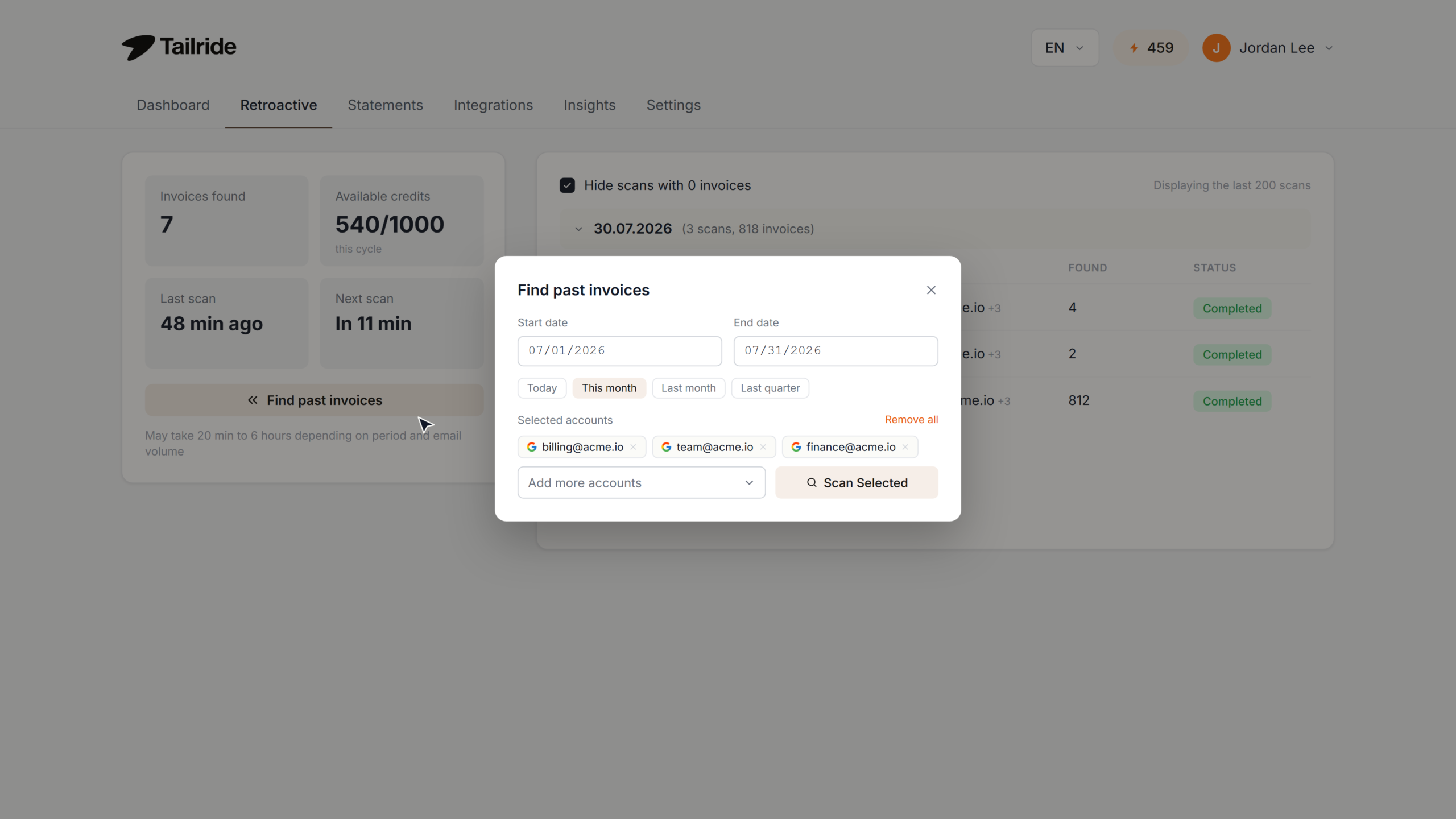
Choose a collection route for each client. Regular supplier mail can come through a connected mailbox. For historical bills, use a past scan with a defined date range and set aside enough credits for the documents you expect to recover. Tailride can also process supported structured invoice files and detect separate invoices inside a file that contains several complete documents. Retroactive scans · Invoice processing
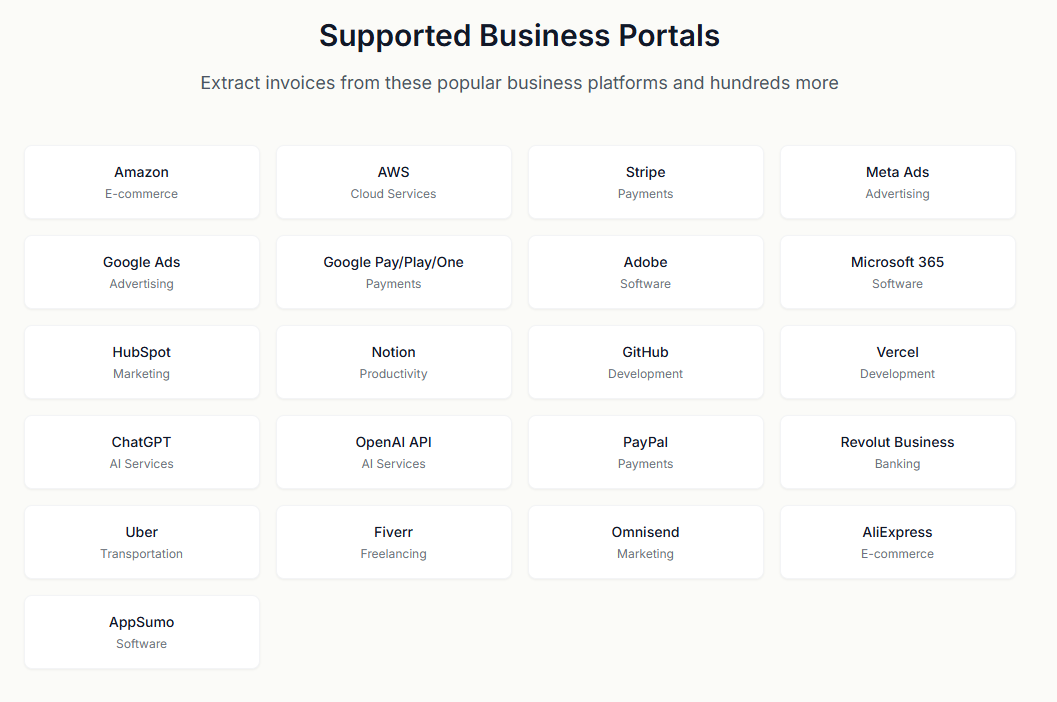
For portal-only bills, test the supplier and login used by the client. The browser extension collects through an existing signed-in session. Desktop runs scheduled collection on macOS, Windows and Linux with the browser closed and the app running. Set up separate profiles where the same supplier has several logins, and agree who handles sign-in challenges. For paper receipts, the client can choose mobile capture or a messaging bot. Portal collection · Desktop schedules · Receipt capture
What is left for the accountant to review?
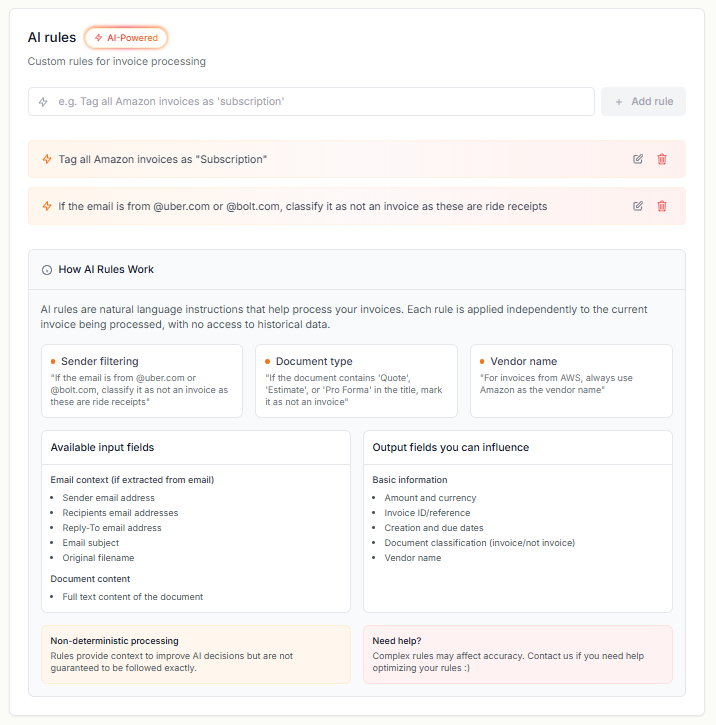
Coding. Sync the client’s chart of accounts and try a bill with lines that belong to different accounts. Tailride can propose accounts and tax codes line by line. Existing coding history can inform its suggestions. Review the account and tax treatment on unfamiliar suppliers before enabling automatic export. Internal tags and exclusions can also be set through processing rules. Automatic coding · Accounting setup
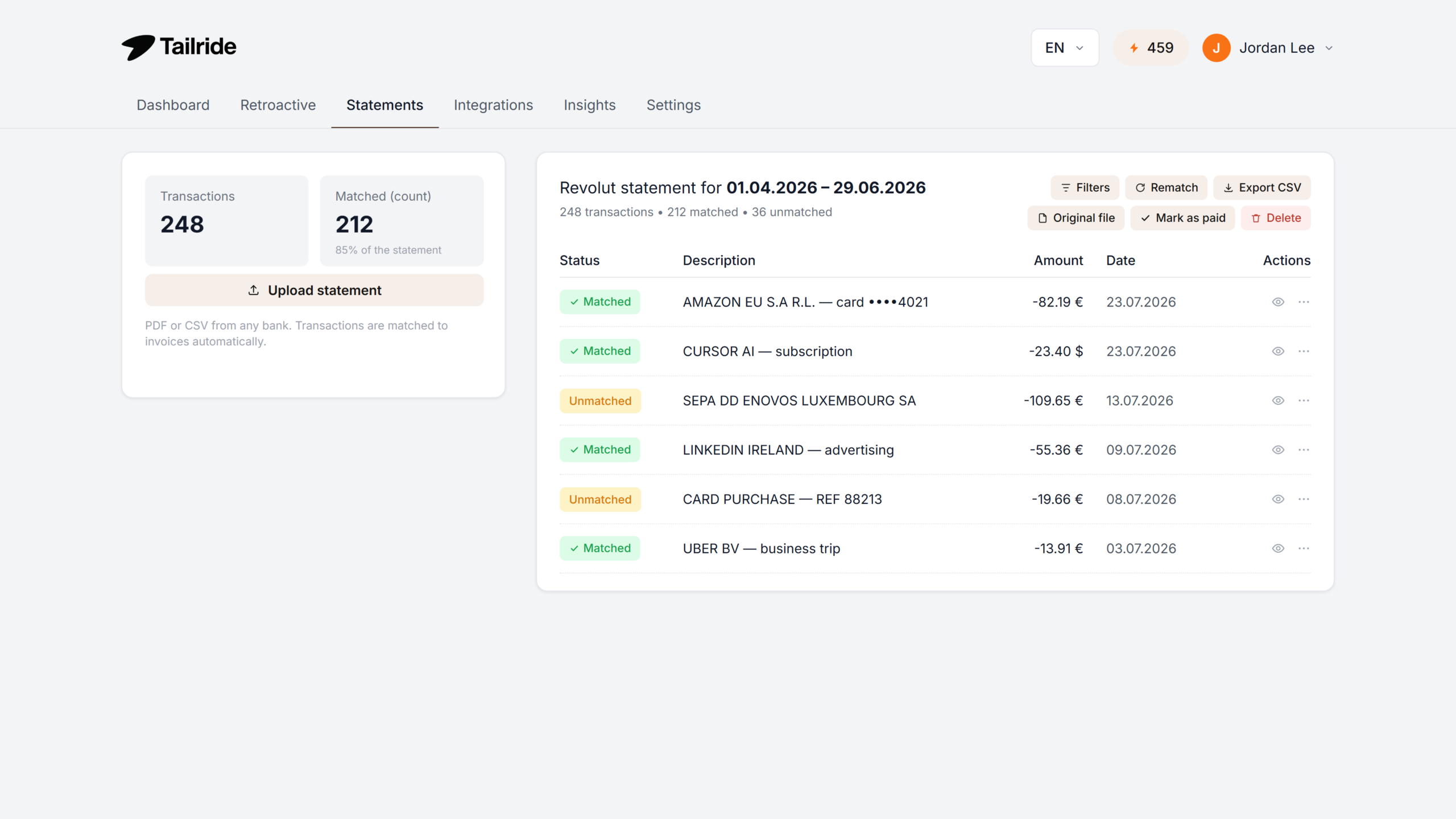
Payment evidence. Upload a client’s PDF or CSV statement and review suggested invoice matches. An unmatched payment gives the team a specific item to follow up on. Check how the reviewer handles a plausible but incorrect match and whether a missing invoice can be found in the client’s sources. Bank reconciliation
Export. Inspect the record in the system the client actually uses. Tailride documents integrations with Xero, QuickBooks Online, Odoo, Sage Accounting and other platforms, plus downloadable DATEV packages. Xero offers optional draft bills. Record type, coding and attachments depend on the destination. Test a rejected or incomplete export as well as a successful one. Accounting integrations
Use a pilot checklist the team can sign off
- Client assignment. Check a correctly addressed bill and a bill the team has to assign manually. Open the chosen workspace and verify the record is there.
- Coding. Compare a bill with several expense lines to the client’s chart of accounts. Record which lines still require an accountant’s decision.
- Export. Open a bill in the destination system and check the supplier, tax, amounts and attachment. For a first Xero pilot, use draft export if you want the team to approve the bill in Xero. Xero draft export
- Exceptions. Decide who resolves a missing invoice and who retries a failed export. Agree how a reviewer will know an issue is resolved before the close.
Check access with both a firm user and a client contact during the pilot. Document who can connect a source, review a bill and change a destination. Review how client documents are handled before giving the workflow access to additional clients. Tailride Data Processing Agreement
Which plan fits the practice?
The public Practice plans are billed annually and use a quota for the firm. There is no minimum client count. They include separate client workspaces, unlimited connected inboxes and team members, and Email Routing for the included setup. Check the current terms and currency before committing. Practice plans and billing terms
| Practice plan | Advertised annual invoice quota | Annual charge in USD |
|---|---|---|
| Practice 5K | 5,000 | $1,356 |
| Practice 10K | 10,000 | $2,184 |
| Practice 20K | 20,000 | $3,564 |
| Practice 40K | 40,000 | $5,472 |
| Practice 80K | 80,000 | $7,524 |
Estimate the steady volume from the clients you intend to onboard. Add the backlog separately and check how top-ups work before scanning a full year. If you only need a single company workspace, compare the business plans and their source and credit limits. Business pricing
For an illustrative estimate, eight clients averaging 30 invoices a month generate about 2,880 invoices a year. A one-time backlog of 900 invoices would bring the starting estimate to 3,780. Include additional intake you expect from other sources and check the credit rules for statements and reprocessing. In the firm dashboard, review usage by client as the pilot grows. Credit usage and billing
A useful pilot has an exception in it
Pick a client with an ordinary monthly inbox and a second client with a portal or shared mailbox complication. Follow a document from arrival to the ledger and record where the team still had to decide something. The important checks are correct client assignment, appropriate coding and a reliable accounting handoff. A firm that already receives complete and coded bills in its ledger may find fewer handoffs to remove. For a broader product comparison, see the Invograb and Tailride comparison.
Accounting practice FAQ
Can one shared mailbox feed several client workspaces?
Yes. The firm connects the mailbox at firm level and configures client identifiers. A document with a clear match goes to the relevant workspace. Documents needing a decision wait in the shared mailbox queue, where the team can choose a client. Shared mailbox workflow
Who can configure matching for a firm mailbox?
The firm owner can connect shared mailboxes and change the client assignment rules. Team members can see connected mailboxes and sort documents that need a decision. Give ownership of that review queue to someone who can verify the recipient details. Firm mailbox permissions
How do I see whether a client is using the firm’s credits?
Open the firm’s client list and select its credit usage view. Tailride shows usage by client for the selected period, including whether it was charged to the shared pool or to the client’s own plan. Firm dashboard and usage
Can I review the exported bill before it posts to Xero?
Yes. Tailride’s Xero integration offers a draft bill option. Check that the intended mode is selected and inspect the first bill in Xero, including the original attachment and the coding the integration sent. Accounting export options